Different tabs give access to meters for all Input channels, all FX Sends and Returns, all Mixes, and up to 4 configurable User views, as well as a Real Time Analyser.
Meters tabs – Channel name and colour is shown below each meter. A gain reduction meter and gate active indicator are also displayed, these show activity in red when switched In, and in grey when switched out.
The meter source point can be globally set for all Inputs and all Mixes independently. This does not affect the on screen metering.
⚙ Touch and hold Options and touch anywhere in the Inputs or Mix meter tab to set the associated source point. Options available for Inputs are Post Trim, Post Gate/PEQ, Post Compressor, Post Delay. Options available for Mixes are Post Trim, Post Insert Return, Post PEQ, Post NEQ, Post Compressor, Post Fader.
⚙ Touch and hold Options and touch anywhere in a User tab to configure the User view. Touch a channel and drag it to the lower part of the screen to configure, add spacers or rows as required, and press Apply to confirm.
RTA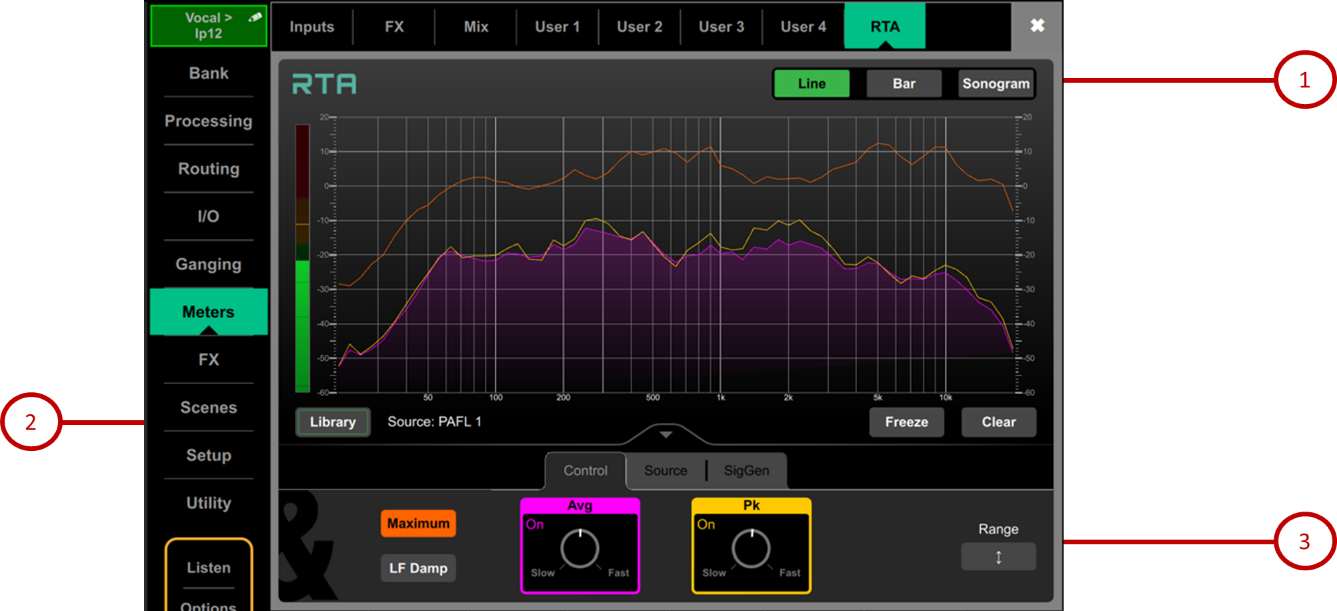
1. RTA Graph – A 61 band Real Time Analyser or Sonogram is displayed here. Select the view mode in the upper right corner.
In Line mode, the Average (RMS) curve in purple and the Peak curve in yellow show current energy in dB for each frequency. The Maximum curve in orange shows all-time peak energy since the RTA was last cleared or its source changed.
In Bar mode, 61 bars display peak energy in dB for each frequency, with a red highlight on the highest peak to aid feedback detection.
2. Library – Opens the RTA Libraries for storing and recalling RTA settings.
3. RTA Controls – Touch the Avg or Pk box to enable/disable the respective curve in the graph. Adjust the response of each from Slow to Fast with the rotary control. Touch Maximum to enable/disable maximum peak levels. Enable LF Damp to slow down the response of the RTA across the lower frequencies.
In the Source tab, select the RTA Source. This can be locked to a specific channel, set to External Control (for selection by Avantis Director or MixPad app), or set to follow current channel selection.
When ‘Follow Sel’ is selected from the RTA Source Select dropdown, you may choose to have the RTA follow the Last Sel, Follow Left Sel or Follow Right Sel. Should you have the RTA sourced from a channel on the left hand screen, selecting a channel on the right hand screen will not change the RTA source point, if ‘Follow Left Sel’ is selected.
Enable PAFL Overrides Sel and select the PAFL bus to have the RTA follow the PAFL source whenever PAFL is active.
The SigGen tab gives quick access to the Signal Generator Type, Level and Mute.
- Sonogram – A 61 band Real Time Analyser or Sonogram is displayed here. Select the view mode in the upper right corner.
In Sonogram mode, energy content over frequency is plotted over time and the dB level colour coded. A 25s real time window is displayed as well as a 5min, 15min and 60min average. Sonogram is a useful tool to spot trouble frequencies, room resonance or mix imbalance.
- Library – Opens the RTA Libraries for storing and recalling RTA settings.
- Sonogram Controls – Touch Range and adjust the dB scale to the right of the graph to limit the area of focus of the Sonogram.
In the Source tab, select the RTA Source. This can be locked to a specific channel, set to External Control (for selection by Avantis Director or MixPad app), or set to follow current channel selection.
When ‘Follow Sel’ is selected from the RTA Source Select dropdown, you may choose to have the RTA follow the Last Sel, Follow Left Sel or Follow Right Sel. Should you have the RTA sourced from a channel on the left hand screen, selecting a channel on the right hand screen will not change the RTA source point, if ‘Follow Left Sel’ is selected.
Enable PAFL Overrides Sel and select the PAFL bus to have the RTA follow the PAFL source whenever PAFL is active.
The SigGen tab gives quick access to the Signal Generator Type, Level and Mute.